Canva & Design
How to Use Canva Templates Without Looking Like Everyone Else
By Ally | The Social Edit Studio · May 29, 2026
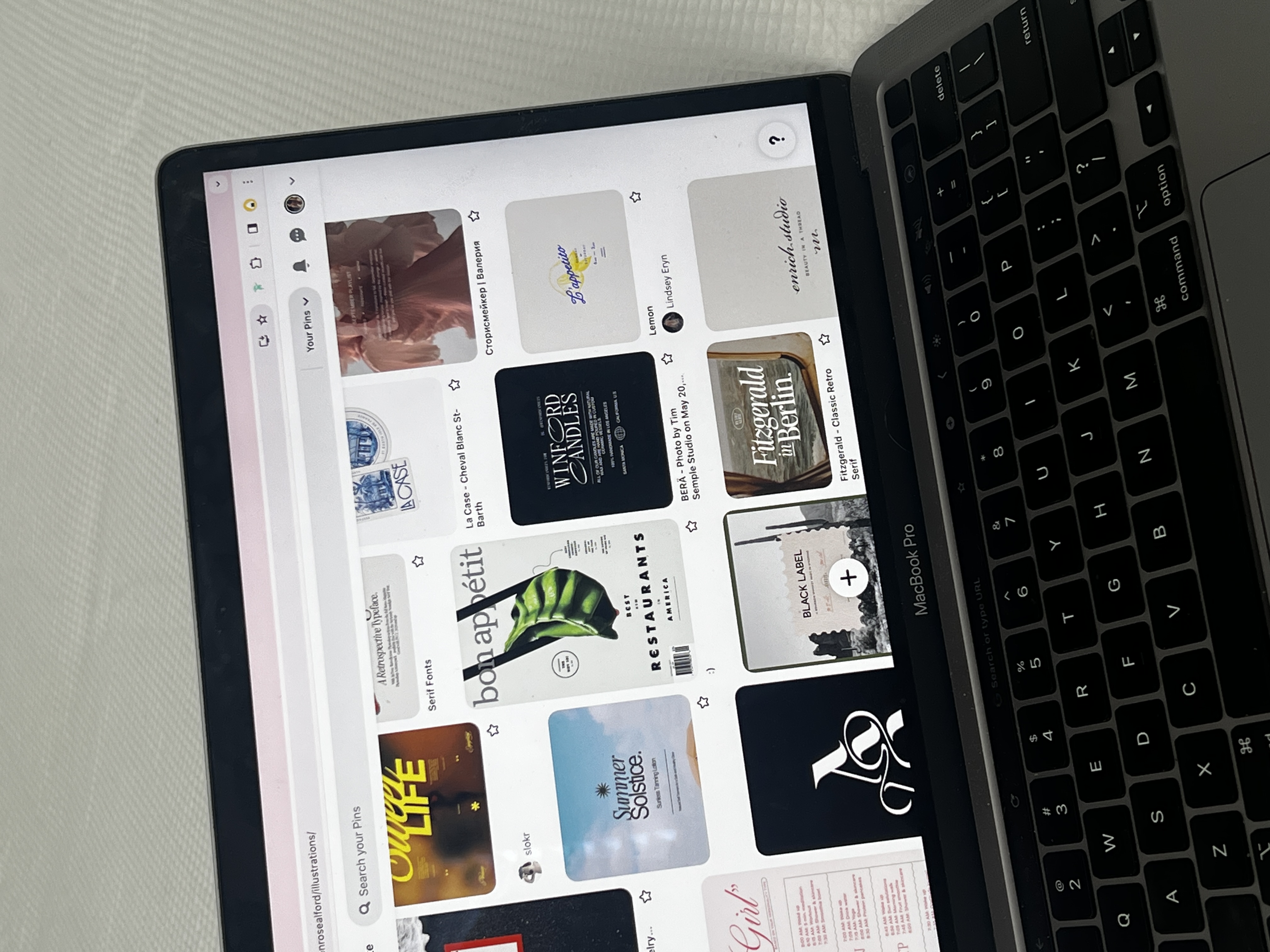
Canva templates have become one of the most popular tools for wedding vendors who want to create polished social media content without hiring a graphic designer. And they work, when they're used well.
The problem is that most people use them exactly the same way: download the template, swap in some text, change nothing else, and post it. Then wonder why their content looks generic.
Turning a template into something that genuinely looks like your brand is a lot simpler than it sounds. You don't need design skills. You just need to know which elements to change and which ones to leave alone.
Why Canva Templates Get a Bad Reputation
When a template is used without customisation, it looks like a template. And because thousands of businesses are using the same Canva templates, content ends up looking the same across dozens of different accounts.
That's not a Canva problem. It's a customisation problem. The template is a starting point, not a finished product.
The other issue is brand consistency. If you're using a different template style every week with different fonts and different colors, your feed looks scattered and your brand becomes hard to recognize.
Step One: Establish Your Brand Elements Before You Touch Any Template
Before you open a single template, you need to know three things: your brand colors, your brand fonts, and your overall aesthetic.
Brand colors: Choose two to three colors and use them consistently. In Canva you can save your brand colors to your Brand Kit so you can apply them with one click.
Brand fonts: Choose one heading font and one body font and stick with them. Canva has hundreds of options, which is part of the problem. Pick two and commit.
Brand aesthetic: Is it light and airy? Dark and moody? Editorial and minimal? Classic and romantic? This should guide which templates you choose in the first place.
Step Two: Choose Templates That Match Your Aesthetic
Not every Canva template is right for every brand. A dark dramatic template doesn't suit a light and airy photography brand. When you're browsing templates, filter by aesthetic and choose only the ones that already feel close to your brand.
Step Three: The Five Changes That Make Any Template Look Like Yours
Change the colors. Replace every color in the template with your brand colors. This is the single most impactful change you can make.
Change the fonts. Replace all text elements with your brand fonts. Be consistent every time.
Remove or replace decorative elements. Most templates include shapes, lines, and icons that reveal them as templates. Remove the ones that don't fit your brand or replace them with simpler elements.
Use your own photos. A template with your photography in it looks infinitely more like your brand than one using stock photos.
Adjust the layout if needed. Don't feel locked into the exact layout. If a text block would look better in a different position, move it.
Step Four: Save a Master Template for Each Format
Once you've customised a template to match your brand perfectly, save it as your master template for that format. Every time you need to create a post, you open your master template, update the text and photo, and you're done.
This eliminates the time spent recustomising the same settings every time and keeps your content consistent.
Common Canva Mistakes Wedding Vendors Make
Using too many templates. Pick two or three template styles that you rotate and stick with them.
Not adjusting font sizes. When you replace fonts, the sizing often needs adjustment. Always check your text at actual posting size before you publish.
Forgetting mobile view. Most people see your content on a phone. Check how it looks at mobile size before posting.
FAQ
Do I need a paid Canva account to use templates effectively? Canva's free account gives you access to many templates. However the Brand Kit feature requires Canva Pro. If you're posting regularly, the time saved makes it worth the investment.
How many template styles should I use? Two to four template styles is a good range. The goal is that someone scrolling your profile sees a clear visual identity, not a collection of different design approaches.
Can I use the same template for Reels covers, Stories, and feed posts? Yes, with adjustments for different dimensions. Just review the layout after resizing since elements sometimes shift in ways that need correcting.
Your Canva Templates Should Look Like You
Used well, Canva templates save you hours every month and build brand recognition over time. Used poorly, they make you look the same as everyone else who downloaded the same design.
The difference is in the customisation. And now you know exactly how to do it.
Inside The Social Edit Studio all templates are designed specifically for wedding vendors and built to be customised. They come with the right aesthetic, the right layouts, and the flexibility to look genuinely on-brand for your business.
Join The Social Edit Studio and start creating content that actually looks like your brand.